Reschedule when eligible
Move an eligible lesson to an available time before the cancellation deadline. Your booking shows the options available to you.
For students & clients
Stay connected with the people you already learn from. Find a time, review the details, and book from your phone. Clients pay no Sessio platform fee.
From connection to confirmation
Scan their Sessio QR code or accept their email invitation. Your connected providers appear in your account.
See available dates, session format, price, location, and cancellation policy. Book a private lesson, join a group, or enroll in a course.
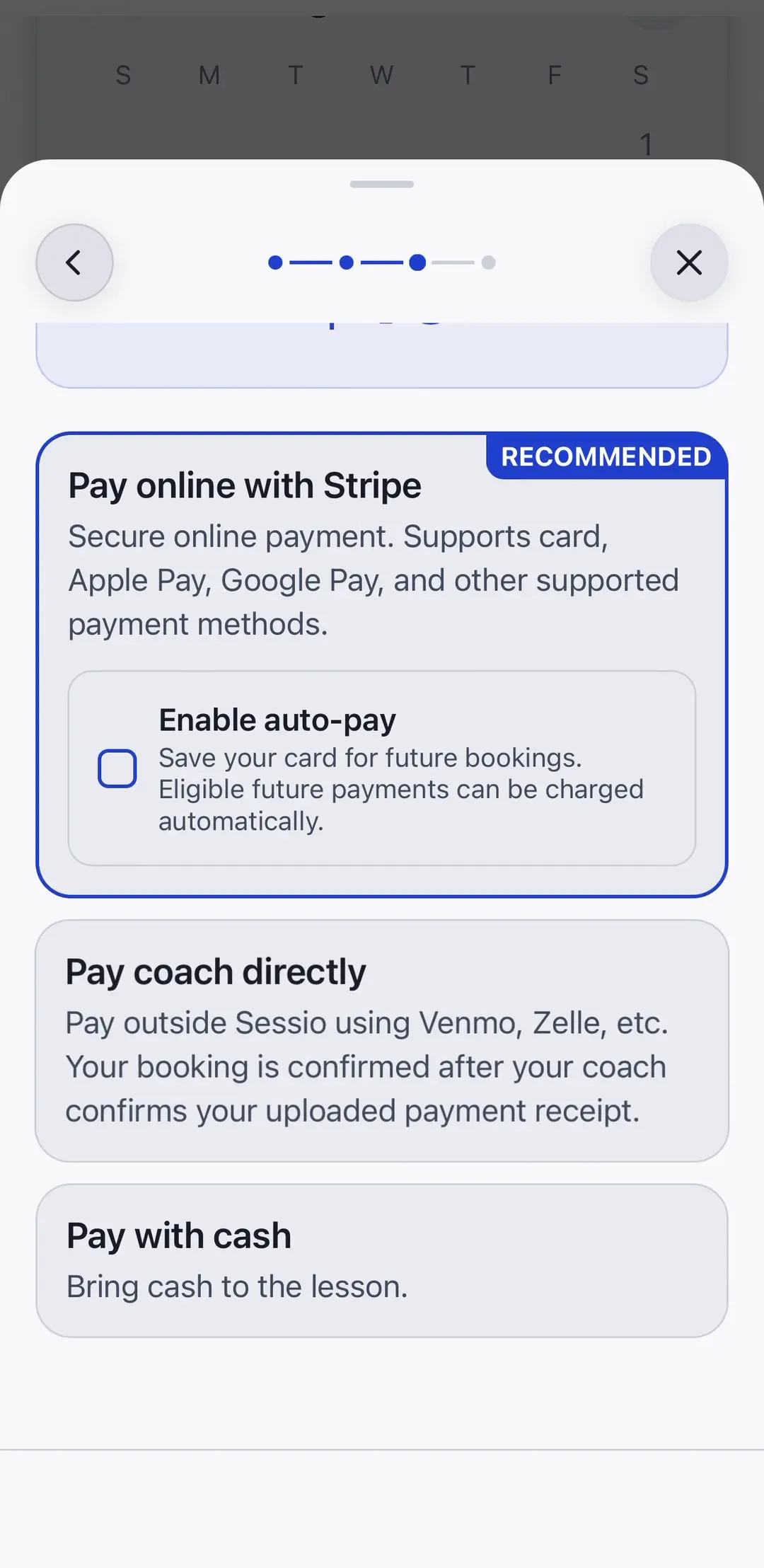
Use a card, cash, or an offline transfer if offered. For an offline transfer, upload your receipt and wait for your provider to verify it.
Getting paid
Choose whether to save a card and enable auto-pay with your provider. You stay in control: change that choice from the provider's profile.
Move an eligible lesson to an available time before the cancellation deadline. Your booking shows the options available to you.
Review the rules before booking. Eligible refunds become credit with that provider, ready for another lesson.
Enable Calendar Sync and select a calendar on iPhone or Android, or connect Google or Outlook on the web. Open Sessio to let native calendar changes sync.
Enable notifications for bookings, changes, and payments, and reminders for upcoming lessons. Tap a booking notification to open its details.
Questions about credit, payments, or booking?
Read the client FAQ →